How to Fix Voice, Music, and Audio Levels in Video
Balance dialogue and music, smooth level changes, and review video audio without hiding important speech.
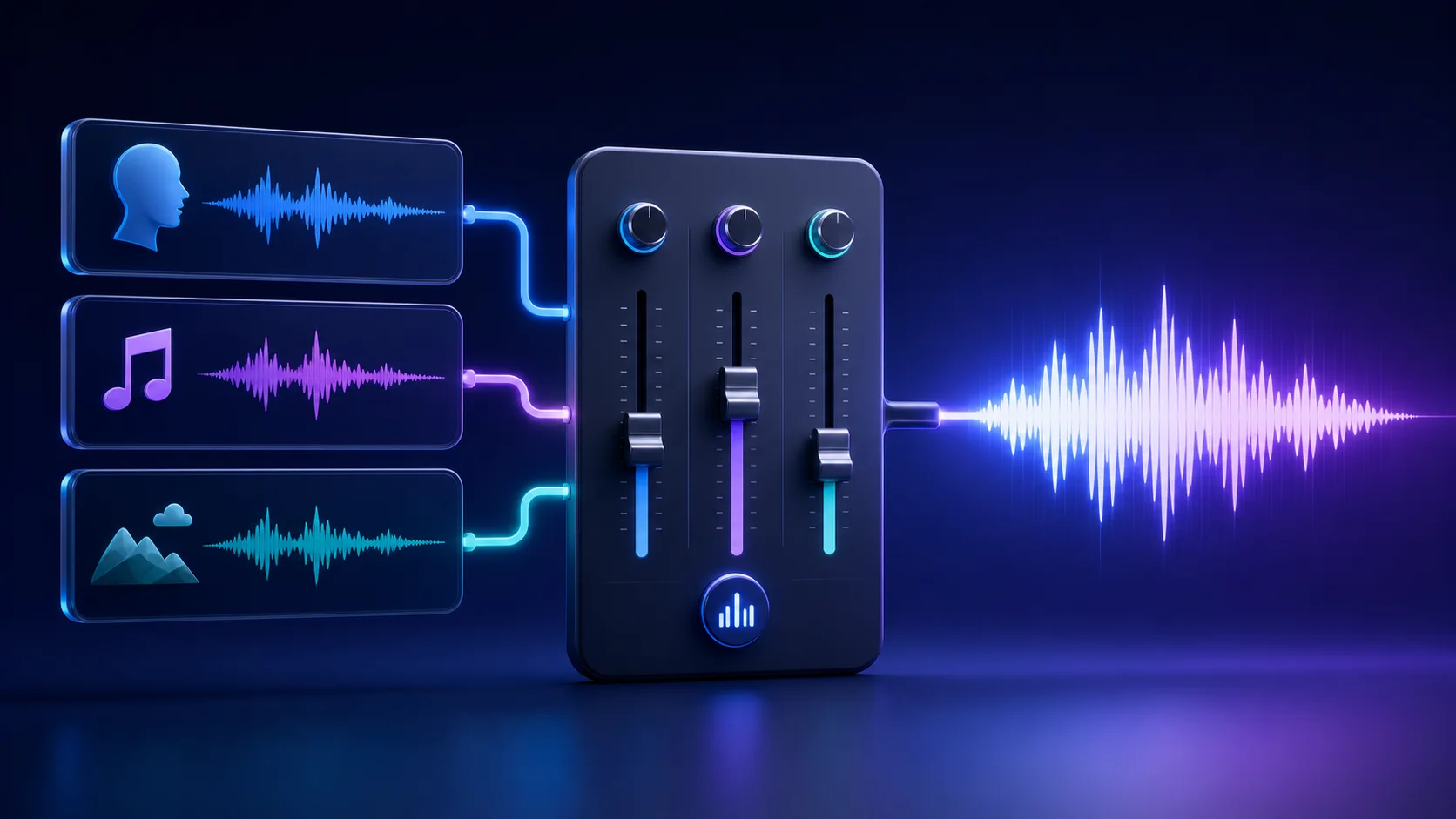
Viewers will tolerate an imperfect picture longer than speech they cannot understand. A practical video mix establishes a clear priority—usually the voice—then uses music and other sound to support that priority.
AI can apply level and mixing changes across tracks, but the final decision still depends on listening. Source recordings vary, and a balance that works on studio headphones may disappear on a phone speaker.
Tell AI what to edit
Upload your footage, describe the changes you want, and watch Reeloft edit your video while the timeline remains available for manual control.
Identify the role of every audio track
Separate source voice, music, and any additional sound before adjusting levels. The source track may also contain room noise or embedded music, so listen to it alone. Decide which sounds carry information and which create atmosphere.
For interviews, tutorials, and marketing explanations, dialogue is usually the anchor. Music can introduce energy, cover transitions, and support an outro, but it should not force a viewer to strain for words.
Set voice clarity before adding music
Listen to the voice track alone through its quietest and loudest sections. Make broad adjustments first. If different clips have noticeably different loudness, balance them before deciding where the music should sit.
AI mixing can change track levels and create fades, but it cannot repair every recording problem. Distortion, severe echo, and speech buried inside a mixed source may remain limited by the original media.
Lower music under speech
Music does not need one fixed level for the entire edit. Bring it down while someone talks, let it rise gently during pauses or visual sequences, and choose a deliberate level for the ending.
Avoid instant changes that call attention to the mix. Short fades create smoother entrances and exits. Preview the boundary around every major change rather than only listening in the middle of a section.
- Keep voice intelligible at the quietest spoken moment
- Use gradual fades when music enters, leaves, or changes priority
- Do not let a loud music accent mask the first word of a sentence
- Retain source audio when it provides necessary context
Useful audio-editing prompts
- Lower the music whenever anyone is speaking.
- Keep the source voice and remove the added music track.
- Fade the music in gently after the opening sentence.
- Bring the music up during the title card, then lower it under dialogue.
- Fade both voice and music out at the end without cutting the final word.
- Balance the selected voice clip with the surrounding clips.
Check edits that affect synchronization
Removing silence or spoken ranges changes timing. Source voice and picture must remain linked, while music and captions may need to ripple or be trimmed to the revised duration. Listen for music cuts that were hidden before the timeline changed.
When a derived highlight joins distant source ranges, compare room tone and voice character across the joins. A visual transition cannot hide a severe audio discontinuity.
Common audio mistakes
- Balancing music against only the loudest line of dialogue
- Using abrupt level jumps instead of short fades
- Removing source audio that the scene needs
- Judging the mix only on one pair of headphones
- Forgetting to review audio after timeline cuts
- Trying to solve distorted source audio only by changing volume
Final listening checklist
- Listen once with the screen hidden and follow every spoken word
- Check the quietest voice section against the loudest music section
- Preview every fade from several seconds before it begins
- Listen across joined highlight ranges for room-tone changes
- Test headphones, laptop or desktop speakers, and a phone speaker
- Confirm the last spoken word is not clipped by the outro fade
- Replay the final export settings if they alter the sound
Frequently asked questions
How loud should background music be?
There is no fixed level that works for every recording. Set the voice first, then lower music until even the quietest important sentence remains easy to understand. Use relative instructions such as prioritizing speech, and verify the result on more than one playback device.
Can changing volume repair distorted audio?
No. Lowering a distorted recording only makes the distortion quieter. Severe clipping, echo, or speech already buried inside a mixed source may be limited by the original media. Level and fade operations are most effective when the source tracks are otherwise usable.
Should music use one level for the whole video?
Not necessarily. Music can rise during an opening, visual sequence, or outro and fall under speech. Use smooth fades between priorities and listen across the complete transition. Avoid sudden changes that make the viewer notice the mix rather than the content.
Why should I test the mix on a phone?
Phone speakers have limited low-frequency response and separation compared with headphones. A voice that sounds comfortably above music in a studio setup can become difficult to follow on a phone. Cross-device listening exposes that problem before export.
When should I keep the original source audio?
Keep it whenever speech, environmental sound, or an on-camera action depends on it. Removing the source track can make a demonstration feel detached even if music remains. If only part of the source audio is distracting, adjust or trim that range instead of muting necessary context everywhere.
Keep learning
Tell AI what to edit
Upload your footage, describe the changes you want, and watch Reeloft edit your video while the timeline remains available for manual control.