Transcript-Based Video Editing: Cut by Words, Topics, and Meaning
Use timestamped speech to remove phrases, retain topics, tighten explanations, and navigate long videos.
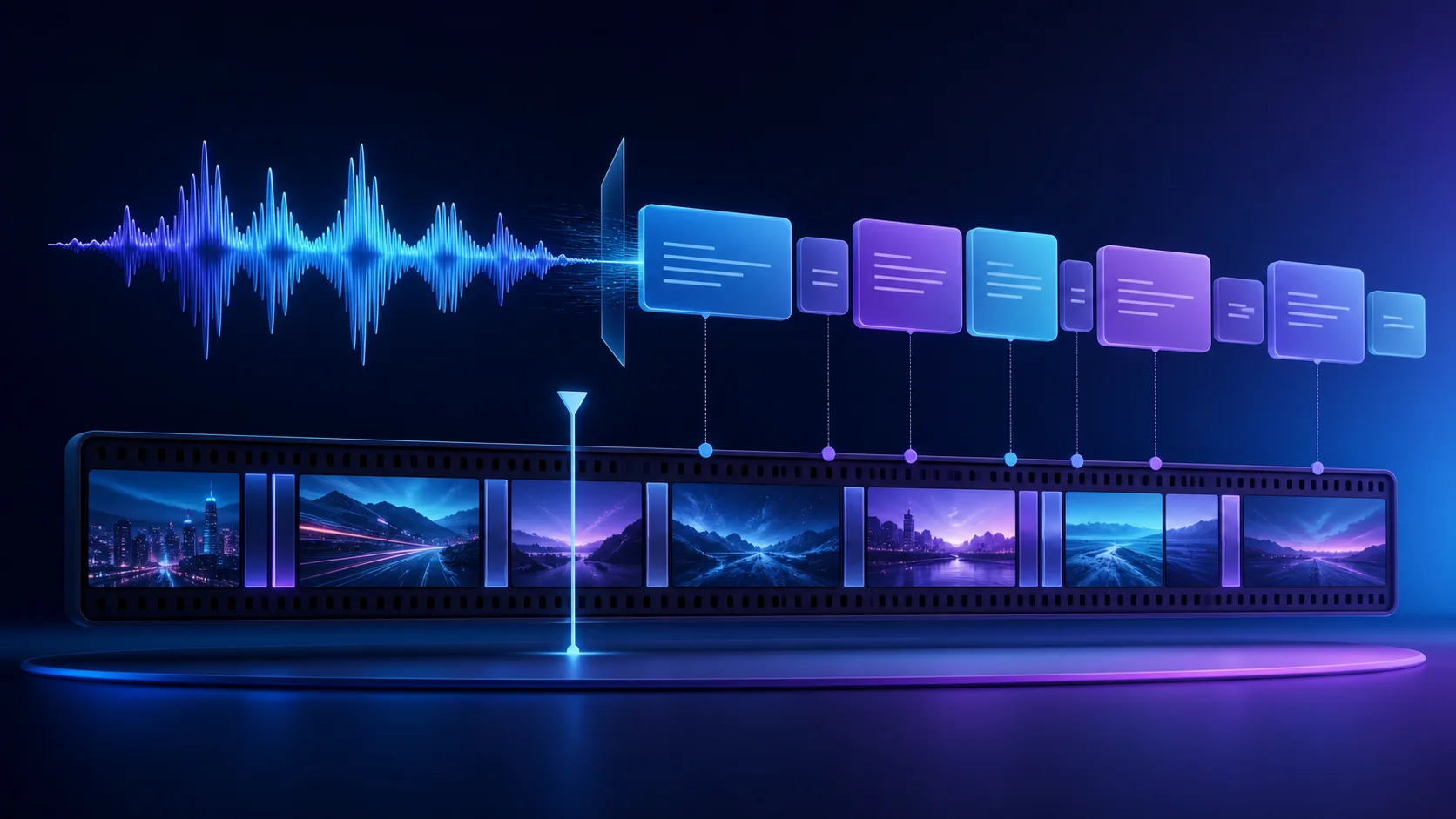
A timestamped transcript turns spoken language into an editing map. Instead of scrubbing through a long waveform to find one sentence, you can quote the sentence, name its topic, or describe the part of the explanation you want to keep.
Transcript editing is especially useful for interviews, tutorials, podcasts, presentations, and talking-head videos. It does not replace playback: the transcript tells you where an idea lives, while picture and sound tell you whether the cut feels natural.
Tell AI what to edit
Upload your footage, describe the changes you want, and watch Reeloft edit your video while the timeline remains available for manual control.
From spoken words to timeline ranges
Transcription associates words and sentences with start and end times. When you request “remove everything before I say ‘here is the result,’” the editor finds the phrase, maps it to the linked video and audio, and removes the earlier range. The rest of the timeline must ripple forward together.
Topic-based edits add another layer. The editor can look for semantically related sentences even if the speaker does not use your exact wording. Because topic matches are less exact than quotes, preview the selected range and preserve enough setup for the audience to understand it.
Commands transcript timing makes possible
- Remove everything before I say “here is the result”
- Keep only the section where I explain onboarding
- Cut the repeated take after the pricing example
- Delete the sentence about the old launch date
- Create a new clip from the question through the complete answer
- Add captions and style them for vertical viewing
Choose boundaries that sound natural
Word timestamps are targets, not always final cut points. Cutting exactly at a first consonant can clip the beginning of speech; ending exactly on the final syllable can make the sentence feel cramped. Small handles around the selected range preserve breath and room tone.
Watch for linked visual context. A speaker may point to a screen before naming it, or a demonstration may continue after the last spoken word. Extend the range when the image needs time to complete the idea.
Handle repeated phrases and uncertain transcripts
Common phrases often appear more than once. Add nearby context—“the second time I say…” or “the version after the pricing example”—or select the relevant clip. When choosing the wrong occurrence would remove important content, clarification is the correct behavior.
Names, acronyms, and technical terms may be transcribed phonetically. Search by neighboring words or the broader topic, then verify the waveform and playback. If the audio is unclear, use a manual boundary rather than treating uncertain text as exact evidence.
A reliable transcript-editing workflow
1. Make a content pass
Remove whole ideas, repeated explanations, and false starts first. Preserve one complete path from setup to payoff before tightening individual pauses.
2. Make a pacing pass
Shorten long gaps and redundant connective language while keeping emphasis. Listen for unnatural jumps in tone or room sound after every ripple edit.
3. Generate and proof captions
Caption text may start from the same transcript, but it still needs readable grouping, accurate names, and timing that follows speech rather than revealing full sentences too early.
When transcript editing is not enough
Music videos, montages, demonstrations without narration, and heavily overlapping conversations depend more on visual rhythm and audio events. Scene changes, sound energy, and manual review may be more useful than language in those sections.
A transcript also cannot decide whether a facial reaction, pause, or camera move is emotionally important. Use it to navigate and create a first structure, then watch the edit as a viewer would.
Final review checklist
- Confirm the requested phrase matched the correct occurrence
- Listen for clipped consonants and abruptly cut breaths
- Keep visual demonstrations long enough to read
- Check that linked video and audio moved together
- Proof names, figures, and specialist vocabulary
- Make sure captions do not expose the punchline before it is spoken
- Compare the result with the untouched source when context feels thin
Frequently asked questions
Can transcript editing find a topic without an exact quote?
Yes, when content analysis is available, a topic request can locate semantically related sentences. Topic matches are less exact than distinctive quotes, so inspect the selected range and confirm that it includes enough context. A quote is preferable when you know the precise line you want.
What if the same phrase appears twice?
Add nearby context, identify the first or second occurrence, or select the relevant clip. If both matches remain plausible and choosing the wrong one would remove important content, the editor should ask which occurrence you mean instead of silently guessing.
Will transcript cuts keep the video and voice synchronized?
They should be applied as linked timeline ranges so picture, source voice, captions, and later positions move together. Always preview the boundary after a ripple edit. A correct timestamp can still need a small speech handle to preserve a consonant, breath, gesture, or visual demonstration.
Can I edit footage when the transcript is incomplete?
Timeline, scene, and audio-based edits can still work without complete text. If the request depends on words the editor cannot identify reliably, use surrounding context or a manual time range. It is better to expose uncertainty than to remove the wrong spoken section.
Keep learning
Tell AI what to edit
Upload your footage, describe the changes you want, and watch Reeloft edit your video while the timeline remains available for manual control.